Creator guide · 2026
YouTube Collaboration Feature: The Complete Guide for Creators (2026)
YouTube just solved one of creators' oldest problems: you co-create a video, it goes live, and your collaborator's audience never finds your channel. The new Collaboration feature changes that. Tag up to 5 co-creators on a single upload, and YouTube automatically recommends it to all their audiences - simultaneously.
What Is YouTube's Collaboration Feature?
Launched on August 1, 2025, YouTube's Collaboration feature allows up to 5 creators to appear as official co-creators on a single uploaded video. When collaborators accept an invitation, their channel icons and Subscribe buttons appear directly below the video player - visible to every viewer on desktop, mobile, and TV.
This is not a simple credit tag. According to YouTube's official documentation, the video surfaces in the subscription feeds of all collaborators' subscribers. The algorithm treats the video as relevant to each collaborator's audience, meaning YouTube's recommendation engine can push the video to viewers who have never heard of you - just because they follow your collaborator.
"One upload can be recommended to the audiences of up to 5 channels at once. That's audience multiplication, not addition."
What formats support the Collaboration feature?
The feature works across the formats most creators use regularly: long-form videos, YouTube Shorts, Premieres, and archived livestreams. The one exception is active live streams - you cannot add collaborators to a live broadcast while it is happening. Everything else is supported.
Who owns the video?
The video stays entirely on the uploading channel. Collaborators gain audience exposure - their name, channel icon, and Subscribe button appear on the video - but they cannot edit or delete the content. Revenue from the video goes 100% to the uploader. Collaborators have no financial stake.
YouTube creator ecosystem in 2026
The scale where collabs pay off.
Step-by-Step: How to Invite a Collaborator in YouTube Studio
Adding a collaborator is done entirely through YouTube Studio during the upload process. Here is the exact sequence:
- Open YouTube Studio at studio.youtube.com
- Click Create then Upload Videos
- Select or drag your video file to start the upload
- On the Details tab, scroll down to the Audience section and click Show More
- Find the Collaboration section and click "Invite a collaborator"
- Search by channel handle - use the @username format
- Choose whether to grant analytics view access - this is optional but recommended for building trust with your collaborator
- Click Next - YouTube generates a unique invitation link
- Share the link with your collaborator outside of YouTube - via email, DM, or any messaging platform
- Your collaborator opens the link, reviews the video, and clicks Accept
- Their channel icon and Subscribe button appear under your video within minutes of acceptance
One important note from torro.io's collaboration guide: the Collaboration feature is only available during the upload process. You cannot add collaborators to a video after it has already been published. If you want to add a collaborator to an existing video, you would need to delete and re-upload it.
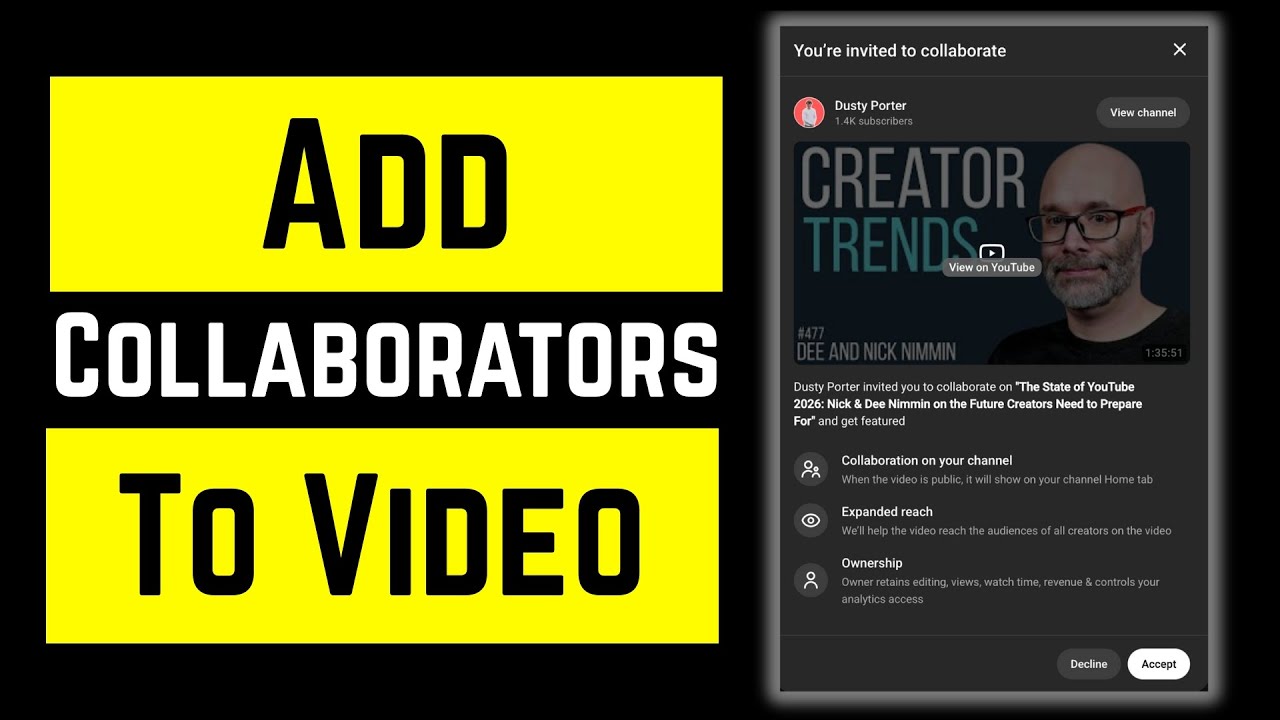
How To Add Collaborators On A YouTube Video | Full Guide - Think Tutorial
YouTube Collab Setup: Typical Time Per Step
What Happens After Your Collaborator Accepts
Once a collaborator accepts the invitation, the changes happen quickly. Their channel icon and Subscribe button appear below the video title on all platforms - desktop, mobile app, and TV. Viewers watching the video see both channels and can subscribe to either without leaving the page.
The video also surfaces automatically in the collaborator's subscriber feed, as if the collaborator had uploaded it themselves. YouTube's algorithm begins treating the content as relevant to the collaborator's audience and may recommend it to users who regularly watch that channel.
Managing collaborations after publishing
The uploader retains full control at all times. To manage an existing collaboration, go to YouTube Studio and find the video in your content list. Click the three-dot menu to access options: reshare the invitation link if the original expired, adjust analytics access permissions for each collaborator, or remove a collaborator entirely. Collaborators can also remove themselves from a collaboration at any time through their own YouTube Studio settings.
Revenue, Analytics, and Ownership - The Full Breakdown
This is the section most creators get wrong before they read the documentation carefully. Here is exactly how the business side works:
"The Collab feature doesn't split revenue. It multiplies reach. And reach converts to subscribers you'd never find alone."
Revenue
100% of ad revenue from a collaboration video goes to the channel that uploaded it. Collaborators receive zero revenue share through YouTube. If you want to compensate a collaborator financially, that arrangement must be made privately outside the platform.
Analytics
The uploader can optionally grant view-only analytics access to each collaborator. This includes watch time, view counts, and viewer demographic data. It does not include revenue data. Sharing analytics is a trust-building gesture and is recommended - collaborators who can see how the video performed are more likely to collaborate again.
Ownership and editing rights
The video belongs entirely to the uploader's channel. Collaborators cannot edit the title, description, thumbnail, or any other metadata. They cannot delete the video. Views and watch time count only toward the uploader's channel metrics - collaborators do not receive credit in their own channel analytics. According to YouTube's 2026 creator partnerships announcement, these ownership rules are by design to keep the system simple and prevent disputes.
Which Creators Benefit Most from YouTube Collabs?
The collaboration feature is most powerful for creators in specific situations. Understanding which scenario applies to you determines whether a collab is worth the effort.
Creators in the 1K-100K subscriber range
This is where the feature delivers the most impact. If you have 10,000 subscribers and your collaborator has 40,000, the upside is enormous relative to your current reach. Larger channels can access a broader audience, but the marginal impact of any single video is smaller. For mid-tier creators hitting a growth plateau, collaboration is one of the few levers that can break through the algorithmic ceiling without paid promotion.
Channels in complementary niches
The highest-performing collab partnerships happen between channels whose audiences overlap in interest but not in content. A tech review channel and a productivity channel share viewers who care about tools and efficiency - but they are not competing for the same subscribers. A fitness channel and a nutrition channel speak to the same lifestyle but from different angles. Music artists collaborating on a track is another natural use case - the feature was partly designed with this in mind.
Why smaller audiences sometimes outperform larger ones
According to recent YouTube data, smaller channels consistently show higher engagement rates per subscriber. Collaborating with a creator who has 50,000 highly engaged subscribers often drives more active new subscriptions than collaborating with a channel that has 2 million passive followers. Engagement rate matters more than raw subscriber count when selecting a collab partner.
What Drives YouTube Channel Growth (2025)
Sources: Kasra Design (2025); Social Shepherd (2025); SQ Magazine (2025)
How to Find the Right Collab Partner
The quality of your collaboration depends almost entirely on choosing the right partner. A great video with the wrong partner yields mediocre results. Here is a systematic approach to finding channels worth reaching out to.
Match scale first
Look for channels with subscriber counts between 0.5x and 2x your own count. If you have 20,000 subscribers, target channels in the 10,000-40,000 range. This range creates a balanced value exchange - both parties benefit roughly equally, which makes the partnership sustainable. A channel 10x your size has little incentive to collab unless you bring something exceptional to the table.
Match niche - but not too closely
You want complementary audiences, not competing ones. Their viewers should want what you make, but should not already be watching channels identical to yours. If you both make exactly the same type of content, you are splitting the same limited pool of viewers rather than introducing each other to genuinely new audiences.
Check engagement rate, not just subscriber count
A channel with 20,000 subscribers and active comment sections, high like ratios, and strong watch time will drive better results than a channel with 200,000 subscribers and minimal engagement. Look at their last 10 videos for comments per view and like-to-view ratios before reaching out.
Where to find candidates
YouTube search within your niche surfaces the obvious candidates. Beyond that, niche-specific Discord communities, Reddit communities, and creator forums are where mid-tier creators actually congregate. When you find a channel worth partnering with, their About tab often has a business email. If not, leaving a genuine comment on a recent video is a credible first touchpoint.
What to propose
The most common mistake in collab outreach is sending a vague "let's collab" message. Propose one specific video idea in your first message. Describe the concept in two sentences, explain why their audience would watch it, and suggest a format. Specificity signals preparation and makes it easy for them to say yes.

How to Invite a Collaborator on YouTube (2025 Step-by-Step Guide) - NH TUTORIAL
Three Collaboration Strategies That Work
Not all collaboration formats perform equally. These three approaches consistently produce results because they give each creator's audience a clear reason to check out the other channel - not just a vague "you might like this."
Strategy 1 - The Niche Swap
Each creator makes a video on the other's channel topic, approaching it from their own perspective. A cooking channel and a nutrition channel swap angles: the cooking channel makes a video about the science behind a specific ingredient, and the nutrition channel makes a video about how to practically cook around a nutritional goal. Both audiences see content that is adjacent to what they already love, from a creator they are about to discover. This format works especially well when the two niches have natural overlap but distinct vocabularies.
Strategy 2 - The Expert Interview
One creator has the expertise, the other has the audience. A finance creator with 5,000 subscribers who is genuinely knowledgeable can partner with a lifestyle creator who has 80,000 subscribers to do an interview-format collab. The expertise creator brings credibility and depth. The audience creator brings reach. Both channels tag each other, and the finance creator gets exposure to 80,000 people who just heard their knowledge validated by someone they already trust. This format works in almost any knowledge-based niche.
Strategy 3 - The Concurrent Coverage
Both creators cover the same event, product launch, or trending topic from their unique angle, cross-tagging each other on both videos. When a major camera manufacturer launches a new body, a gear reviewer and a travel photographer both make videos on the same day, each referencing the other. Viewers who watch one video are actively curious about the other perspective. According to torro.io's collaboration strategy guide, this format drives higher cross-channel traffic than any other type because the viewer intent is already present.
How YouTube Bookmark Pro Helps You Research Partners
Partner research is the most time-consuming part of the collab process - typically 45 minutes or more per candidate. YouTube Bookmark Pro compresses that to under 5 minutes by giving you a pre-built research workspace that does not require tab-switching.
Build a partner research library
Use the Library to save the last 5-10 videos from each potential partner as you evaluate them. Add a note to each saved video with your assessment: "High engagement, complementary niche, worth outreach - see comment section." When you are ready to make a decision, you have a curated collection rather than a scattered set of browser tabs.
Organize candidates by niche
Create dedicated folders in Subscriptions Pro for your collab research: "Potential Collabs - Tech," "Potential Collabs - Fitness," "Potential Collabs - Finance." As you identify candidates, subscribe and move them into the appropriate folder. Your collab pipeline lives in one place and does not get lost in your main subscription feed.
Analyze prospects with the Creator module
The Creator module lets you check a prospect's growth rate, engagement patterns, and top-performing content before you reach out. Understanding what their best videos look like informs the specific concept you propose - and proposing a concept that fits their proven format dramatically increases your response rate.
Track your outreach with video notes
Use the video notes feature to record your outreach history directly on saved videos: when you reached out, their response, what you agreed to, and next steps. What normally requires a separate spreadsheet or CRM becomes a built-in record attached to the content itself. The entire research-to-outreach workflow stays in one place.




Start for free
Build your collab research library today
Save partner candidates, organize by niche, and analyze their content before you reach out - all in one side panel. The Library is free forever.
Related guides
Frequently Asked Questions
Can I add a collaborator to a video that's already published?
No. The Collaboration feature is only available during the video upload process in YouTube Studio. You cannot add collaborators to videos after they have been published. You would need to delete and re-upload the video to add collaborators.
Does my collaborator get paid?
No. Revenue from a collaboration video goes entirely to the channel that uploaded it. Collaborators gain audience exposure and subscriber visibility, but there is no automatic revenue split. If you want to compensate a collaborator, you must arrange that privately outside of YouTube.
How many collaborators can I add to a YouTube video?
YouTube currently allows up to 5 collaborators on a single video or Short. All 5 must accept the invitation for their names and Subscribe buttons to appear under the video player.
Does the YouTube Collaboration feature work on Shorts?
Yes. The Collaboration feature works on YouTube Shorts, long-form videos, YouTube Premieres, and archived livestreams. It does not work on active live streams.
What happens if a collaborator rejects or removes themselves?
If a collaborator declines the invitation or is removed by the uploader, their name and Subscribe button will not appear on the video. The video continues to exist normally on the uploader's channel. Collaborators can also remove themselves from a collaboration at any time.
Leave a Comment
Join the conversation